
Achieving an optimal Windows 11 performance setup requires a strategic approach that addresses hardware readiness, startup routines, background resource management, and visual adjustments. Whether you are standardizing performance across corporate endpoints or maximizing frame rates on a personal gaming rig, methodical tuning eliminates bottlenecks and keeps your system stable.
Performance challenges in modern computing rarely stem from a single faulty component; instead, they usually arise from a cumulative load of aggressive startup items, background syncing processes, and inconsistent system configurations. By establishing a repeatable baseline and applying targeted adjustments, you can achieve a fast, secure, and responsive operating system.
Hardware Readiness and BIOS Optimization
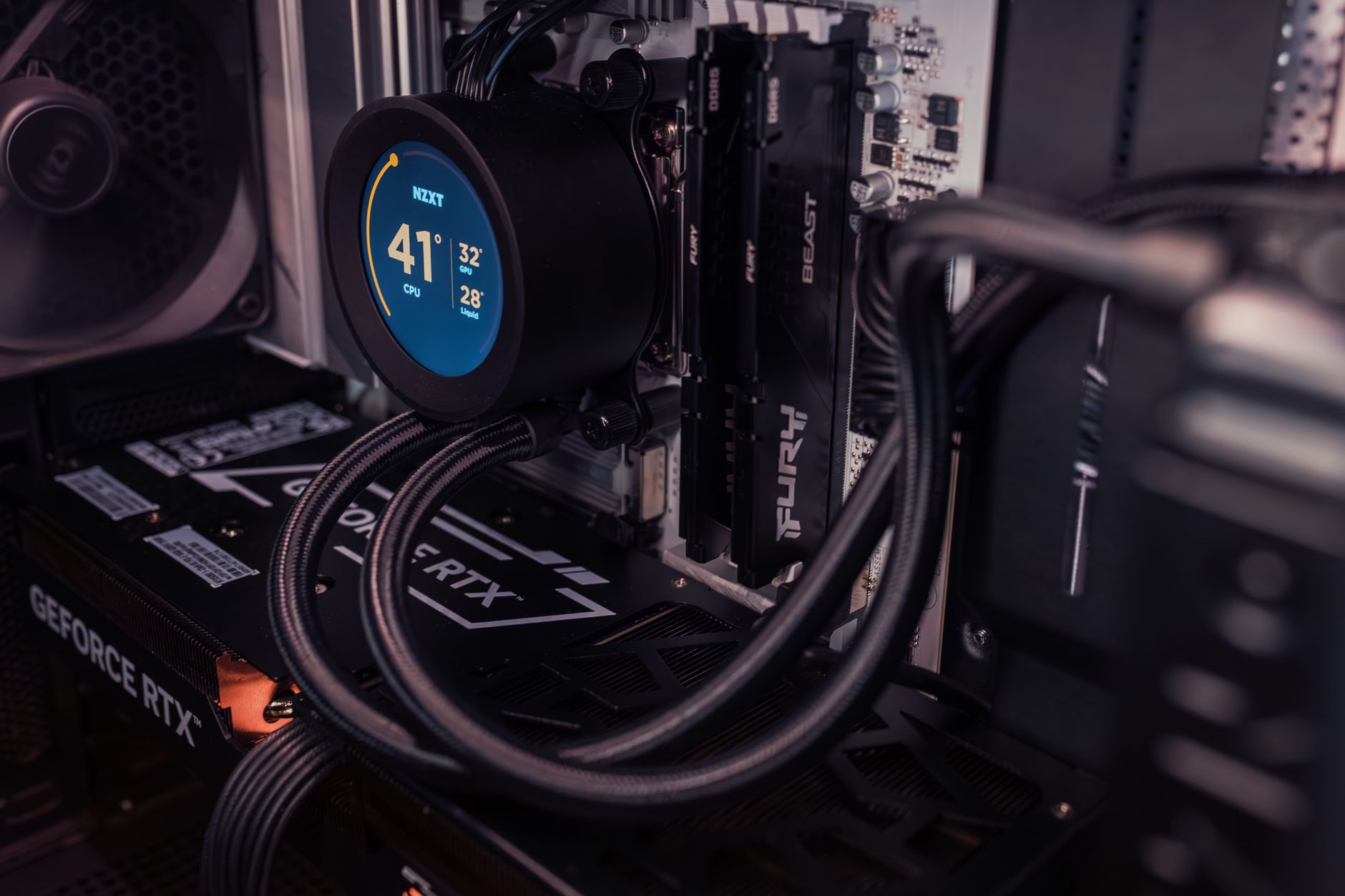
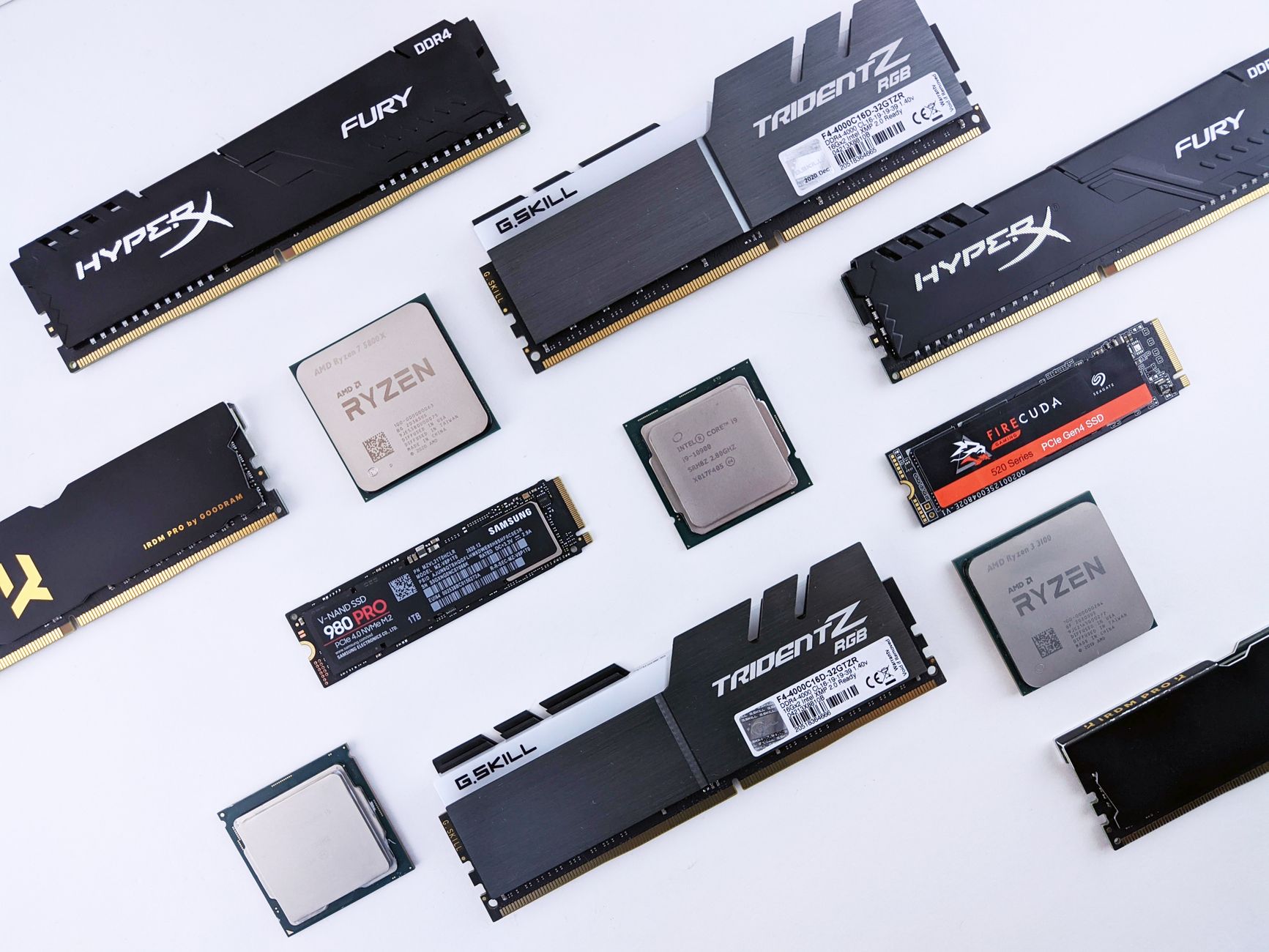
Before modifying operating system settings, you must ensure your physical hardware operates at peak capacity. A common oversight during a fresh Windows 11 installation involves memory clock speeds. By default, high-performance RAM may run at a slower basic JEDEC speed rather than its rated capability.
To fix this, access your system BIOS during startup and enable XMP or DOCP profiles to ensure your RAM runs at its intended speed. Furthermore, evaluate your storage drives. Optimizing your hard drives and solid-state drives helps maintain read and write speeds, directly reducing load times for applications and system boots.
Startup, Background Activity, and Visual Tuning
Once hardware is properly configured, the focus shifts to minimizing unnecessary background interference that consumes precious CPU cycles and RAM. Applications configured to run automatically upon login can significantly slow down boot times and inflate background resource usage.
To clean up your environment, disable any applications you do not need running immediately at startup. Additionally, turn off background apps and app permissions for software that does not require constant real-time data syncs. You can also optimize visual responsiveness by navigating to advanced system settings:
- Press the Windows key, type view advanced, and hit enter.
- Under the Performance section, click Settings.
- Select Adjust for best performance.
- Re-enable show thumbnails instead of icons, show window contents while dragging, and smooth edges of screen fonts to retain a clean visual interface.
Advanced Tweaks for Gaming and Heavy Workloads
If your primary use case demands maximum resource extraction—such as competitive gaming or intensive media rendering—additional configuration steps are required. Unnecessary background overlays and hotkeys consume hidden system resources and should be completely disabled through your application preferences.
Inside the Windows 11 Gaming and Graphics settings, you can adjust texture filtering quality from standard to performance to prioritize speed over minute image fidelity. For advanced control over multitasking behavior, you can configure background task CPU priority. Set background tasks to the lowest possible value of 10, as lower inputs are automatically re-evaluated by Windows as higher thresholds.
| Optimization Area | Standard PC Adjustment | Gaming & High-Load Adjustment |
|---|---|---|
| Startup Apps | Disable non-essential programs | Disable all non-critical background software |
| Visual Effects | Default or balanced appearance | Adjust for best performance while keeping font smoothing |
| Background Activity | Turn off unused app permissions | Restrict background task CPU priority value to 10 |
| Hardware Configuration | Verify driver updates | Enable BIOS memory profiles (XMP/DOCP) |
Centralized Management for IT Environments
When managing Windows 11 performance across an entire fleet of business endpoints, individual manual tweaks are inefficient. Enterprise setups require a repeatable standard that balances speed, security, and stability without creating excessive IT overhead.
Modern endpoint deployment strategies combine cloud-analytics platforms and mobile device management tools—such as Microsoft Intune—to continuously monitor network quality, storage health, and resource usage. By leveraging automated enterprise policies, administrators can remotely push network priorities, manage cellular and Wi-Fi configurations, and resolve resource bottlenecks before they impact end-user productivity.
Frequently Asked Questions
What is the single most effective way to optimize Windows 11 in an IT environment?
The most effective approach relies on centralized group policy management and continuous resource monitoring rather than performing isolated, manual tweaks on individual workstations.
How can I safely free up CPU and RAM cycles for gaming on Windows 11?
Adjust your visual effects settings for best performance while keeping elements like font smoothing and window dragging enabled, disable unnecessary background overlays, and set your background task CPU priority to the lowest functional value of 10.
Why is my RAM running slower than the speed I purchased?
RAM often defaults to a slower basic JEDEC speed out of the box. You must enter your BIOS settings and manually enable XMP or DOCP profiles to achieve your hardware's advertised speed.
References & Sources
- Optimizing Windows 11 for Peak Performance in IT Environments – ITU Online IT Training
- Indigo Rose Software Releases Setup Factory 10.1 Installer Builder for Windows
- How to Fully Optimize Windows 11 For Gaming
- Tips to improve PC performance in Windows | Microsoft Support
- Microsoft and Ericsson bring enterprise-grade 5G laptop management to Windows 11
Editorial Note: This article was researched via verified live web sources and published on 2026-10-05. Questions or feedback? Contact the editorial staff at TrendsInNews.
Photo credit: Andrey Matveev / Pexels