
Running a local large language model on an 8GB VRAM graphics card is entirely practical when you configure your environment properly. By selecting efficient software tools and adjusting memory parameters, you can run capable models locally without running into frustrating hardware bottlenecks.
Choosing Your Local LLM Interface and Engine
Having a GPU with 8GB of VRAM no longer limits you to basic tasks. Modern local models have advanced to the point where they rival paid APIs directly from your local machine. The first step in your deployment is choosing the right backend engine and user interface.
For most users, Ollama serves as a reliable backend engine to handle model execution and inference. To interact with the model comfortably, you can pair it with Open WebUI. This setup gives you a chat interface similar to commercial web platforms while keeping all your data strictly on your local hardware.
Optimizing Context Length for 8GB VRAM
When working with limited hardware resources, managing memory allocation is critical to maintaining a responsive system. A common pitfall when deploying local models on 8GB cards is ignoring context window sizing.
By default, Ollama initializes a 32K context window, which consumes a massive amount of memory and slows down inference significantly on 8GB GPUs. To fix this, drop your context to 8K. You can easily achieve this by setting OLLAMA_CONTEXT_LENGTH=8192 in your environment variables. Making this single adjustment often doubles your effective speed while incurring a minimal loss in capability for everyday tasks.
Hardware Tuning and Power Management
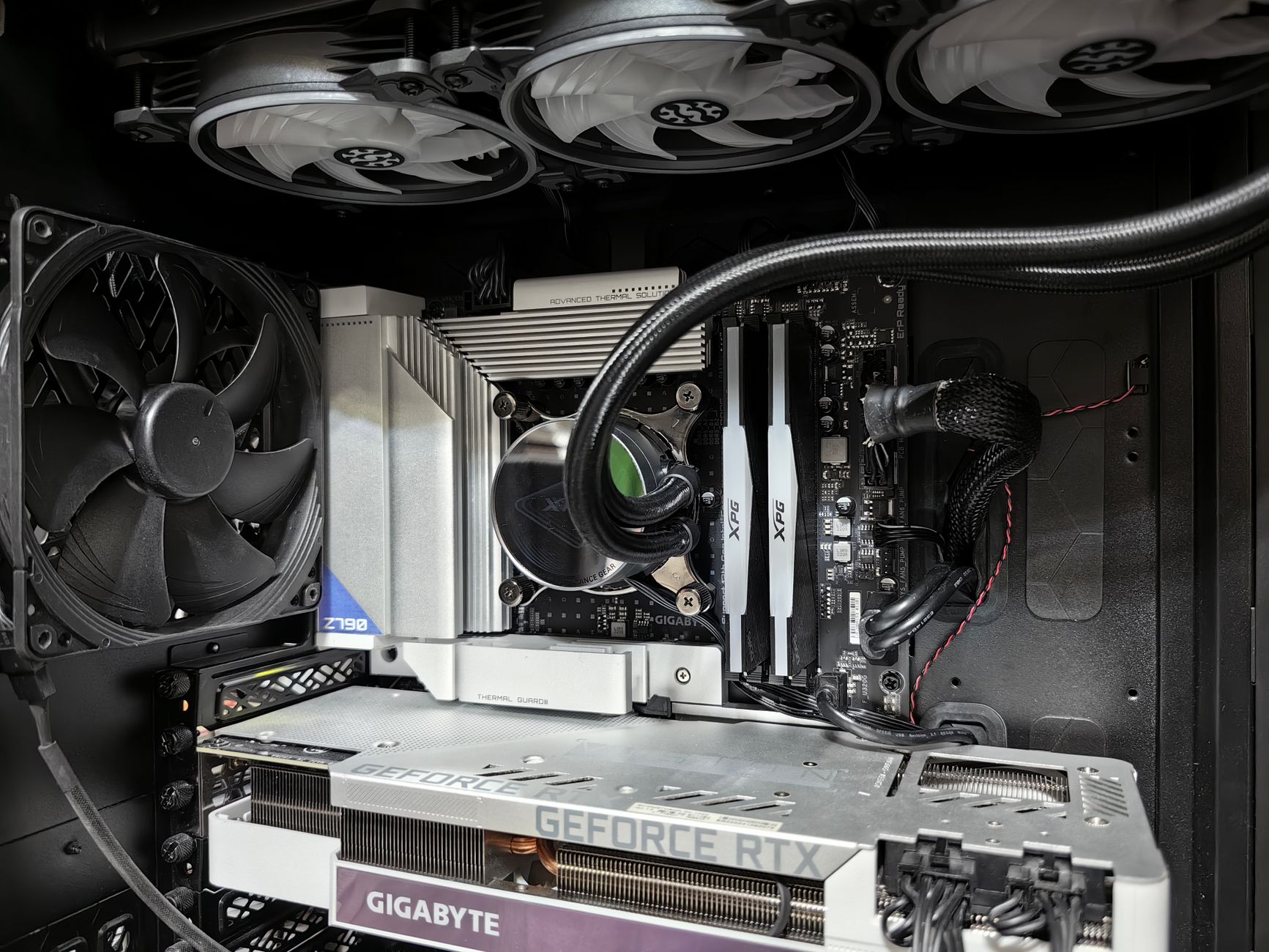
Inference operations push your GPU to its limits, spiking power consumption and generating heat. Squeezing every watt out of your hardware requires balancing thermal output with computational power.
Referencing a reliable undervolt and overclocking tutorial for your GPU allows you to maintain stable performance while lowering power consumption. Keeping your card cool and efficient prevents thermal throttling, ensuring consistent speeds during long generation sessions.
| Setting / Component | Default Configuration | Optimized for 8GB VRAM |
|---|---|---|
| Context Length | 32K (32768 tokens) | 8K (8192 tokens) via OLLAMA_CONTEXT_LENGTH=8192 |
| Interface Choice | Command line only | Open WebUI paired with Ollama |
| Power Profile | Factory stock settings | Undervolted and tuned for thermal efficiency |
Frequently Asked Questions
What is the best way to run a local LLM on an 8GB VRAM GPU?
Using tools like Ollama combined with an interface such as Open WebUI provides a streamlined experience for running models locally on 8GB VRAM hardware.
How can I improve the speed of my local LLM?
You can often double your effective inference speed by reducing the context length from the default 32K down to 8K by setting OLLAMA_CONTEXT_LENGTH=8192 in your environment variables.
How do I maintain performance while protecting my hardware limits?
Utilizing a dedicated undervolt and overclocking tutorial for your GPU helps reduce power consumption and heat while maintaining steady inference performance when VRAM usage is pushed to the limit.
References & Sources
- LLM Models for 8GB VRAM: 2026 Guide - Mr. Appz
- Aqua Security Listed in OWASP’s LLM and Generative AI Security Solutions Landscape Guide for 2025
- Interpretable LLM Breakthrough: Guide Labs’ Revolutionary Steerling-8B Shatters AI’s Black Box Problem | Technology AI News | CryptoRank.io
- LLM Consulting Group Inc. Information
- Local SEO Guide Competitors | Companies like Local SEO Guide
Editorial Note: This article was researched via verified live web sources and published on 2026-10-20. Questions or feedback? Contact the editorial staff at TrendsInNews.
Photo credit: Andrey Matveev / Pexels